Solo creators, online stores, teachers, and small studios rely on Pippit AI when they need video fast. Whether you typed Pippit or Pipit to get here, the workflow below is the same.
Why Creators Use Pippit AI for Short-Form Video
TikTok, Reels, and Shorts reward steady posting, yet filming every idea is rarely practical. Creators write a hook, choose a 9:16 frame, and let Pippit AI deliver a clip that is ready for captions and music. Faceless channels use the same Pipit AI workflow to publish daily without a camera.
Vertical 9:16, square, and widescreen output
Pipit AI hooks rendered in minutes, not shoot days
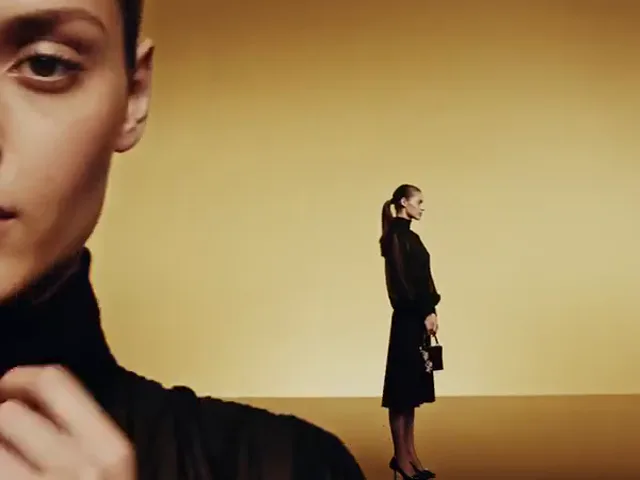
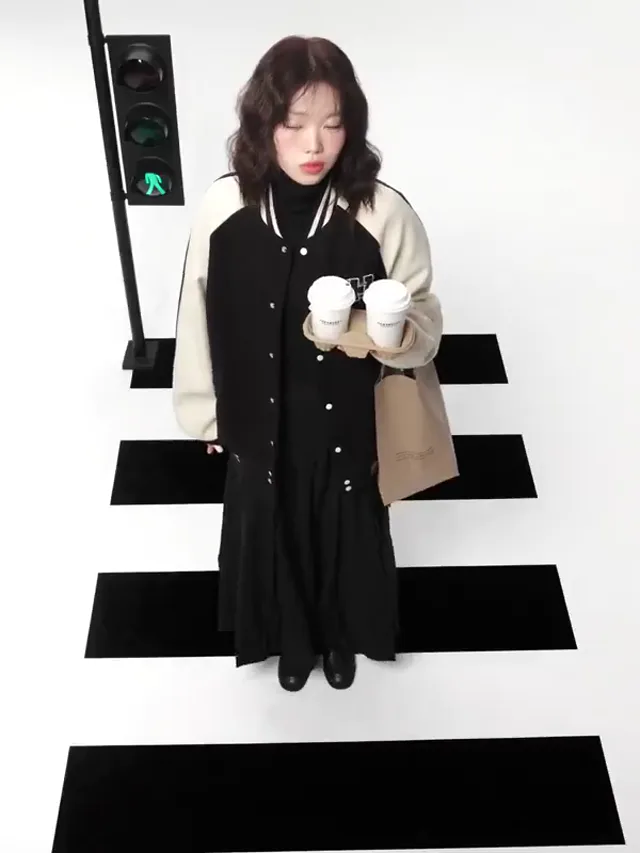
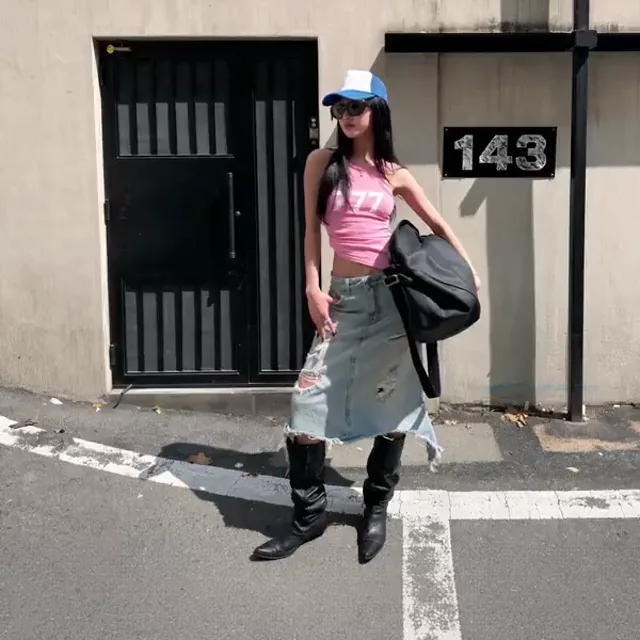
Studio slide: Layered copies of a fashion portrait slide across a clean studio background.
Why Sellers Turn to Pippit AI for Product Ads
One product photo is enough to begin. Sellers upload a packshot, describe the setting and camera move, and Pippit AI produces an ad loop for listings, paid social, or email banners. Seasonal refreshes no longer need a studio booking, which is why many shops keep a Pipit AI tab open next to their store dashboard.
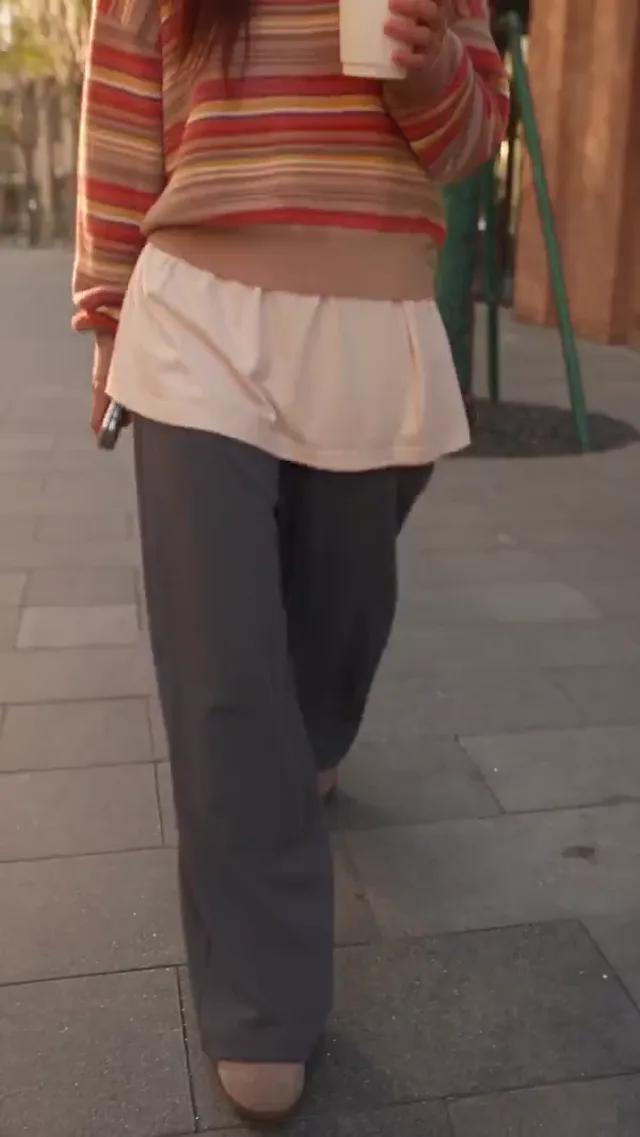
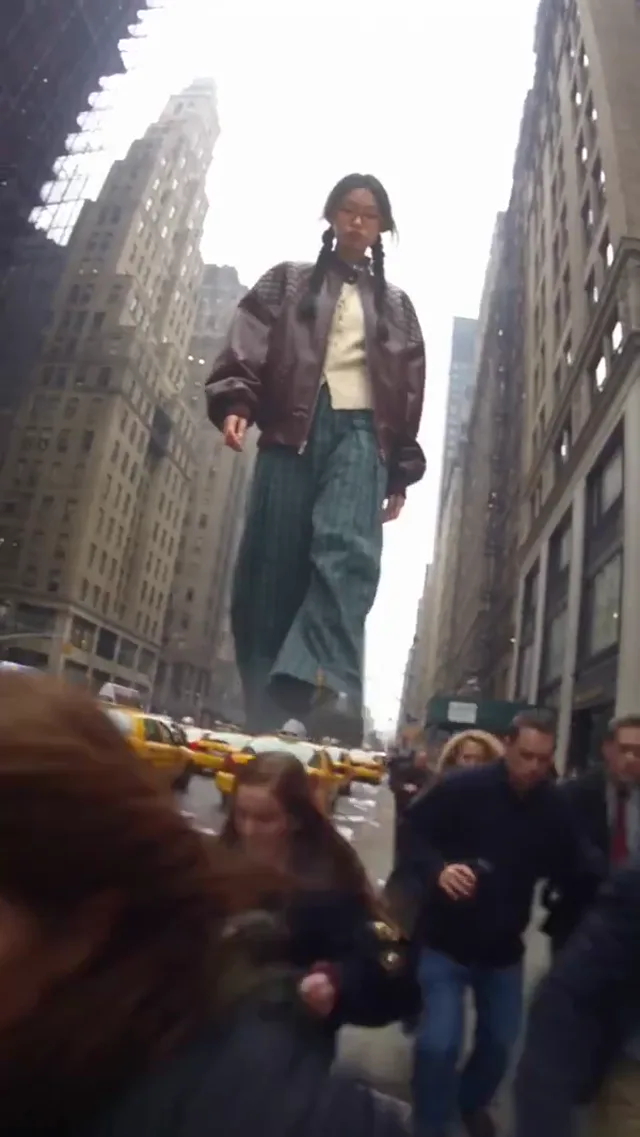
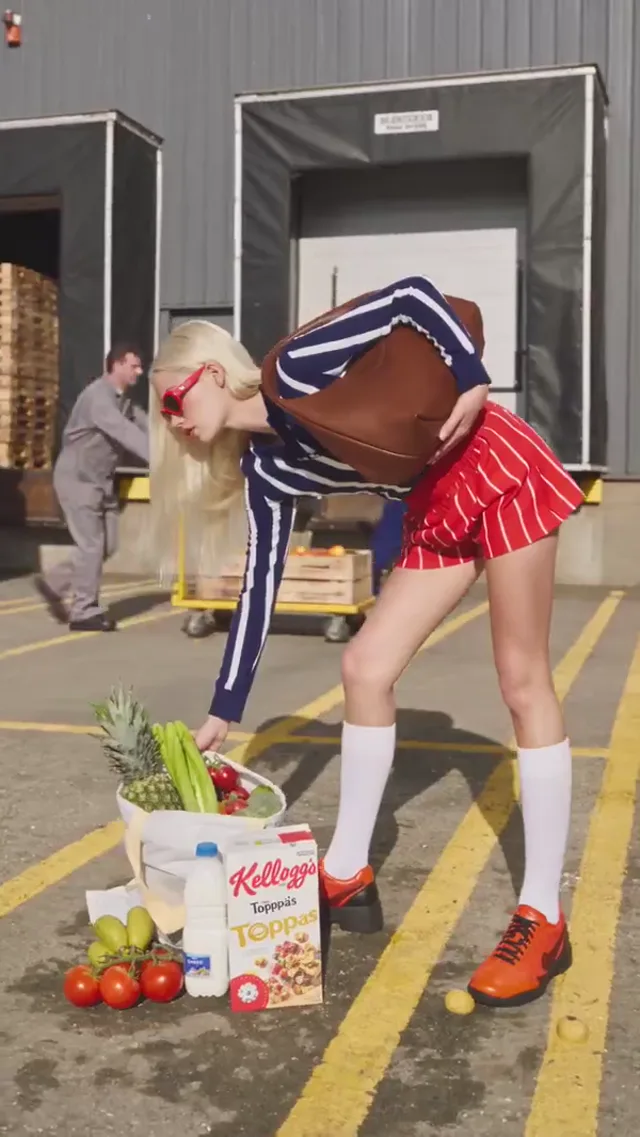
Floating fall: A person falls backward as a coffee cup and other belongings hang in midair.
Why Teachers Build Lesson Clips With Pippit AI
Ten seconds of an erupting volcano, a dividing cell, or a busy ancient market can hold a class better than a static slide. Teachers and course authors describe the moment they need, render it in Pippit AI, and drop it into slides or an LMS. A quick fact-check keeps every Pipit clip accurate.
Lesson openers with almost no setup
Plain-language prompts, no editing skills
Pippit AI Text to Video for topics with no footage
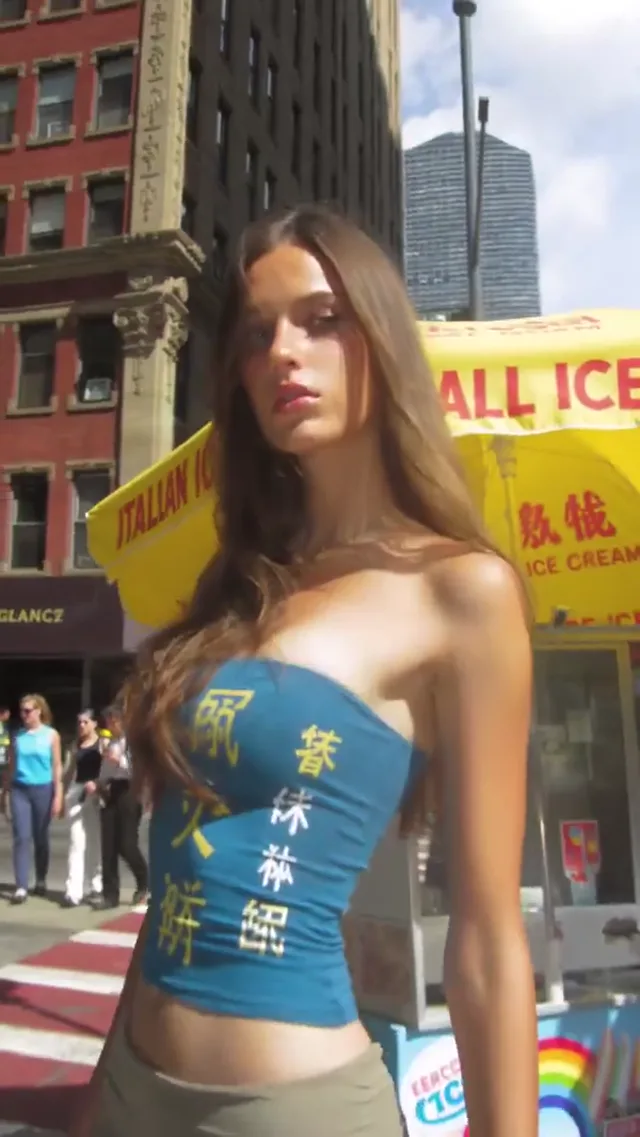
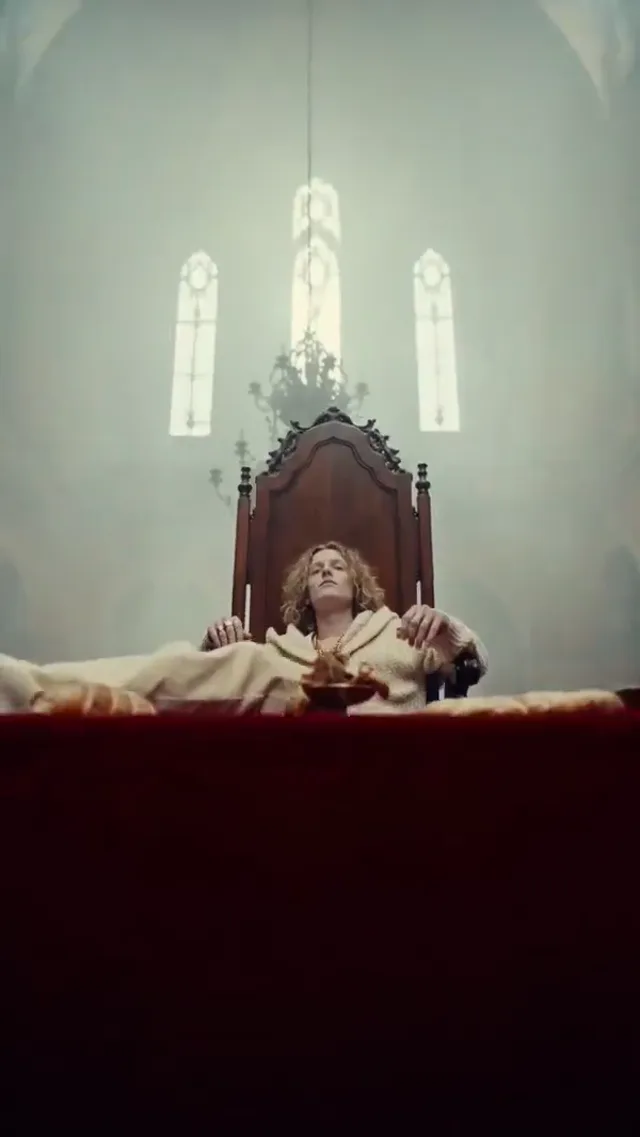
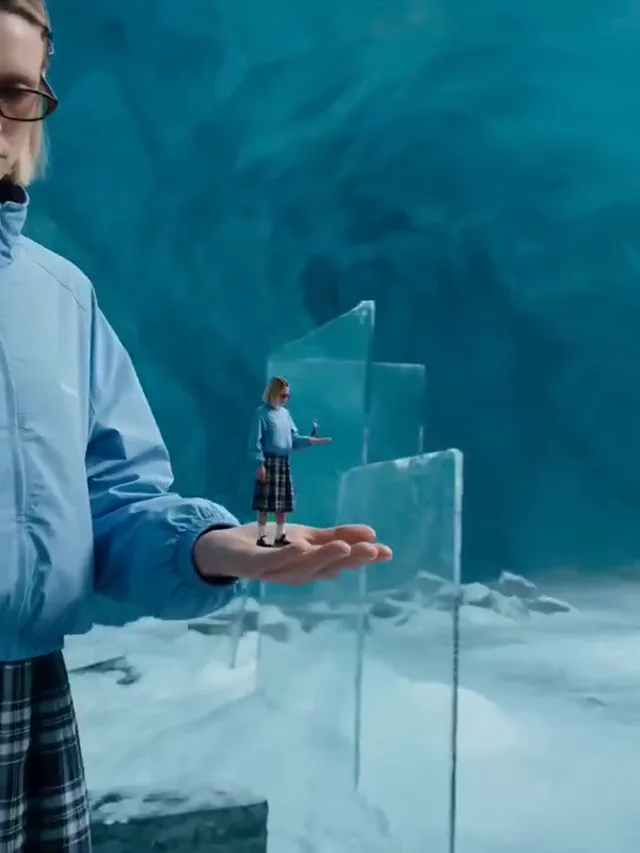
Cutout: Flat pieces of the scene peel away and return around a central figure.
Why Storytellers Previsualize Scenes in Pippit AI
Indie filmmakers, novelists, and game studios test shots in Pippit AI before spending a budget. Multi-Ref mode keeps a character and a location steady across takes, so a rough storyboard becomes an animatic that collaborators can actually watch. Writers can start with a single Pipit AI character portrait and animate it later.
Multi-Ref @ for character and set consistency
Camera moves: dolly, crane, truck, static
Teaser trailers and pitch animatics
Concept frames with GPT Image or Flux in Pippit AI
Describe the subject, action, lighting, and camera, and Pippit AI renders a clip that sticks to the brief. Seedance and Kling handle realistic motion, cloth, and physics inside Pippit AI.
Photo to Video With Natural Motion
Upload a still and add one line about movement. Pippit AI keeps faces, products, and colors intact while the scene comes alive. It is the quickest way to test Pipit AI on your own image.
First, Last, and Multi-Ref Control
Lock an opening and closing frame, or tag @image1 and @video1 references, so every Pippit AI shot lands where you planned it.
Pippit AI vs Runway vs Pika
Runway is a full editing suite built around its own models, Pika leans toward quick stylized effects, and Pippit AI gathers Seedance, Kling, and more behind one credit balance. Pipit users pick it to compare engines side by side.
Credit Cost Shown Before You Render
Each model lists its price for the chosen length and resolution, so a Pippit AI render never costs more than the number you approved, even on a longer Pipit AI clip.
Licensed for Client Work
Paid Pippit AI plans include commercial rights, no watermark, and up to 4K output for client deliverables. Pipit AI exports drop straight into pitch decks and ads.
How to Make a Video With Pippit AI
Three steps in your browser with Pippit AI. No downloads, no timeline editor.
Answers about the Pippit AI video generator, pricing, the Pipit AI spelling, and how it compares with other tools.
What is Pippit AI?
Pippit AI is a browser-based AI video generator at pippit.org. It turns text prompts and photos into short clips with engines such as Seedance and Kling, and it adds image models like GPT Image and Flux for stills. Some people search for it as Pipit or Pipit AI.
Is Pipit AI the same as Pippit AI?
Yes. Pipit and Pipit AI are common misspellings of Pippit AI. Whichever spelling you search, you reach the same video studio, the same account, and the same credits at pippit.org.
Pippit AI vs Runway vs Pika: which should I pick?
Runway suits editors who want a complete timeline suite, Pika is handy for playful effects, and Pippit AI suits creators who want several leading video models under one credit balance. If you searched Pipit AI for a simpler option, start with a short Text to Video test.
Pippit AI vs Kling vs Seedance: what is the difference?
Kling and Seedance are video models, while Pippit AI is the studio that runs them. Instead of separate accounts for each engine, a Pipit AI user picks either model from one menu and pays with shared credits.
How do I make a video with Pippit AI?
Open the Pippit AI generator, choose Text to Video or Image to Video, write what should happen and how the camera moves, pick a model, confirm the credit cost, and press Generate. The Pipit render usually arrives within a few minutes.
Is Pippit AI free to try?
New accounts receive 20 starter credits to try the generator. After that, credits come from a monthly or yearly Pippit AI plan or a one-time pack, and the Pipit AI price for each clip is shown before you submit.
Who uses Pippit AI?
Social media creators, online sellers, marketers, teachers, indie filmmakers, and game studios. Each group uses Pippit AI to get video without cameras, actors, or editing software. Pipit AI fits anyone who needs short video on a deadline.
Why use Pippit AI instead of filming?
A shoot needs gear, locations, and hours of editing. With Pippit AI, a prompt or a single photo becomes a clip in minutes, so you can test many ideas and keep only the best Pipit AI take.
How do I write a strong Pipit AI video prompt?
Whether you call it Pippit AI or Pipit AI, prompts work best in this order: subject, action, setting, lighting, camera move, and style. Keep one main action per clip and name the move, such as dolly in or crane up. Pippit AI also has a Use example button with ready-made prompts.
Can I use Pippit AI videos commercially?
Yes. Paid Pippit AI plans include a commercial use license and watermark-free downloads, so clips can run in ads, client projects, and online stores. Make sure any logos or people in a Pipit clip are yours to use.
Which aspect ratios and lengths does Pipit support?
Pippit AI offers widescreen, vertical, and square formats. Available durations and resolutions depend on the model you select, and the Pipit generator lists the options for each one.
Does Pippit AI work on a phone?
Yes. Pippit AI runs in any modern mobile or desktop browser, so there is no app to install. Your Pipit projects follow your account across devices.
Where are my Pippit AI videos saved?
Finished clips land in My Videos and stills in My Images inside your Pippit AI account, ready to download again later. Open My Videos from any device to find past Pipit renders.
Can Pipit AI turn a photo into a video?
Yes. Upload a photo in Image to Video, describe the motion, and Pippit AI animates it while keeping the subject recognizable. Pipit AI handles portraits, product shots, and landscapes well.
Which models can I use in Pipit AI?
Pippit AI includes Seedance, Kling, Gemini Omni, MiniMax, and HappyHorse for video, plus GPT Image, Nano Banana, Flux, and Qwen Image for stills. The Pipit AI model menu always shows what is available today.
How long does a Pipit AI render take?
Most clips finish within a few minutes. Timing depends on the model, duration, and resolution, and Pippit AI shows progress while the Pipit render runs.
Do Pippit AI exports carry a watermark?
Paid Pippit AI plans export without a watermark. If you are testing Pipit AI on starter credits, check the export panel to see how your clip will be delivered.
How do I contact Pippit AI support?
Email support@pippit.org with your account email and the task ID of the Pipit AI render you need help with.
Start Your First Pippit AI Video
One prompt or one photo is all Pippit AI needs. Watch your idea move in a few minutes.